
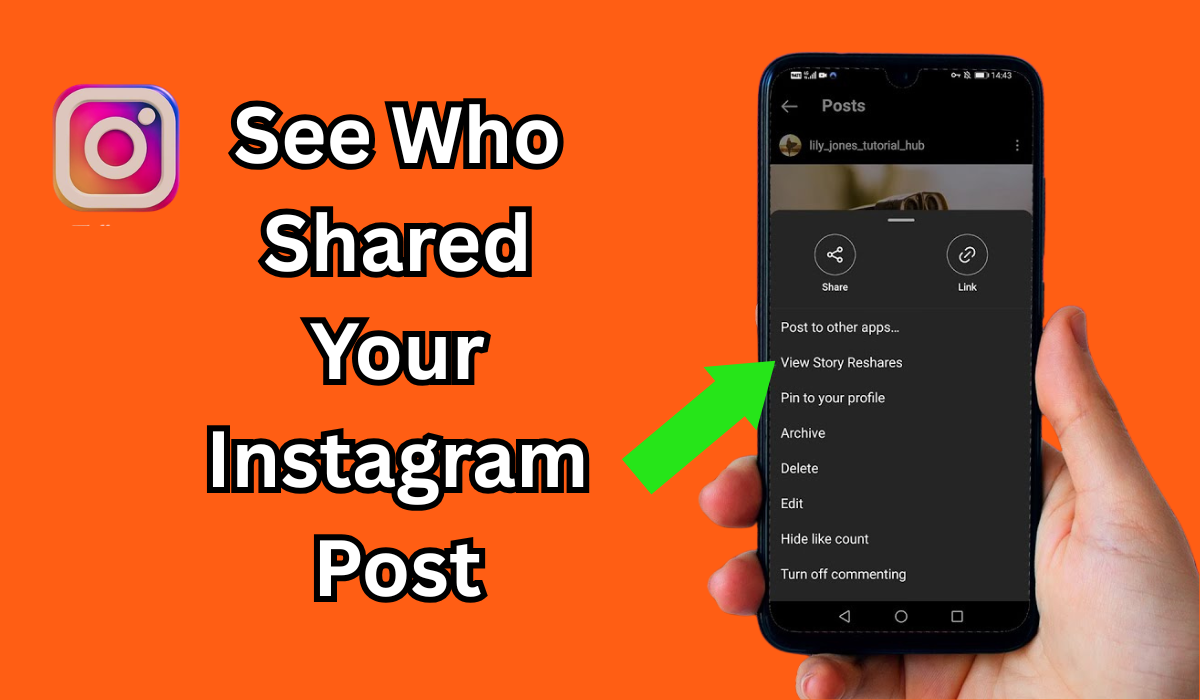
Have you ever posted something on Instagram and wondered, “Wait — who shared my Instagram post?” You’re not alone. Millions of Instagram users ask this same question every single day. It feels natural to want to know who’s spreading your content across the platform. After all, sharing is one of the biggest compliments someone can give your post.
In this guide, we’re going to break everything down in simple, easy-to-follow steps. We’ll cover what Instagram actually lets you see, what it doesn’t, and some smart workarounds to help you track your post’s reach. Whether you’re a content creator, a small business owner, or just a regular user — this article is for you.
Let’s dive right in.
What Does “Sharing” Mean on Instagram?
Before we get into the how-to part, let’s quickly clear up what “sharing” actually means on Instagram. When someone shares your post, they can do it in a few different ways:
- Direct Message (DM): They send your post privately to a friend or group.
- Story Repost: They share your post to their own Instagram Story.
- Repost Apps: They use a third-party app to repost your content on their feed.
- Link Share: They copy your post’s link and share it outside of Instagram — like on WhatsApp, Facebook, or Twitter.
Each of these works a little differently, and Instagram treats them differently too. That’s why the answer to “can you see who shared your Instagram post?” is a bit more layered than a simple yes or no.
Can You See Who Shared Your Instagram Post?
Here’s the honest answer: partially yes, but not completely.
Instagram does give you some data about shares — but it doesn’t hand over a full list of names showing exactly who shared your post and where. This is a privacy decision on Instagram’s part, and it applies to both personal and business accounts.
Here’s what you can see:
✅ Total number of shares — You can see how many times your post was shared via DMs.
✅ Story reshares — If someone shares your post to their Story, you may get a notification (if your account is public).
✅ Insights data — Business and Creator accounts can access share count in Instagram Insights.
Here’s what you cannot see:
❌ A specific list of usernames who shared your post via DM.
❌ Who shared your post outside of Instagram (e.g., Facebook, WhatsApp).
❌ Who saved and then shared your content using third-party tools.
So while you can’t get a full picture of who is sharing your content, you can still gather useful data — especially if you have a Creator or Business account.
You May Also Read: What is the Top Site to Buy Instagram Followers in Pakistan?
How to See Who Shared Your Instagram Post (Step-by-Step)
Step 1: Switch to a Creator or Business Account
If you’re using a personal account, you won’t have access to Instagram Insights. The first step is to switch to a Creator or Business account. Here’s how:
- Go to your Instagram profile.
- Tap the three horizontal lines (hamburger menu) in the top right.
- Go to Settings and Privacy.
- Tap Account type and tools.
- Select Switch to Professional Account.
- Choose either Creator or Business.
This is completely free and takes less than two minutes.
Step 2: Open Instagram Insights
Once you have a professional account, you can check your post’s performance, including shares.
- Go to your profile page.
- Tap the post you want to check.
- Below the post, tap View Insights (or the graph icon).
- Scroll down to see Shares — this shows the total number of times your post was shared.
This is how you see who shared your Instagram post — or at least how many times it happened. Instagram won’t show you a specific list of names, but the number alone can tell you a lot about how your content is performing.
Step 3: Check Story Reshares
If your Instagram account is public, you might get a notification when someone shares your post to their Story. Instagram usually sends a direct message notification that says something like “[username] shared your post to their Story.”
To see these:
- Open your Instagram DMs (tap the paper airplane icon or the chat icon).
- Look for notifications from Instagram.
- You’ll see a message saying someone shared your post to their Story — and it will show you their username.
This is actually one of the only ways to see who shared your Instagram post with a specific name attached to it.
Step 4: Use the “Repost” Notification Feature
Instagram has been rolling out its native repost feature over the past year. When someone reposts your content using Instagram’s built-in repost tool, you’ll receive a notification. You can tap that notification to see exactly who reposted your post.
So if you’re wondering can you see who reposted your Instagram post — yes, with the native repost feature, you can!
How to See Who Sent Your Instagram Post
Now let’s talk about DMs — because a lot of people ask, “can you see who sent your Instagram post?”
When someone sends your post to their friend via DM, Instagram does count that as a share in your Insights. But here’s the thing — Instagram does NOT show you which specific user sent it. You’ll only see a number (e.g., “This post was shared 47 times”).
However, if someone sends your post to you directly, it will appear in your DMs. That’s the only case where you can directly identify who sent your post.
So to summarize:
- Can you see who sent your Instagram post to others? No.
- Can you see if someone sent your post directly to you? Yes, it shows in your DMs.
How to See Who Saved Your Instagram Post
A lot of people mix up “shares” and “saves.” Let’s clear this up: saves and shares are two different things on Instagram.
When someone saves your post, they tap the bookmark icon below your post. Instagram tracks the total number of saves in your Insights — but just like shares, it does not show you a list of who saved it.
To check your saves:
- Open the post.
- Tap View Insights.
- Look for the bookmark icon count — that’s your total saves.
If you’re asking “how to see who saved your Instagram post” — unfortunately, Instagram doesn’t reveal individual usernames for saves. You’ll only see the number.
How to See Who Shared Your Instagram Story
Stories work a bit differently from regular posts. Here’s what you can track:
- Story Views: Go to your active Story, swipe up, and you’ll see a list of everyone who viewed it.
- Story Shares: If someone shares your Story to their own Story, you’ll receive a notification via DMs.
But wait — you can only see who viewed your Story while it’s still active (within 24 hours). After that, the data disappears unless you have it saved in your Archive.
For how to see who shared your Instagram story, the best method is:
- Go to your Story (while it’s still active).
- Swipe up to see viewers.
- Check your Activity Notifications for reshare alerts.
Why Can’t I See Who Shared My Post on Instagram?
This is one of the most common frustrations Instagram users face. “Why can’t I see who shared my post on Instagram?”
The reason comes down to privacy. Instagram’s Terms of Service and privacy policies are designed to protect how users share content with each other. When someone sends your post in a DM, that’s a private conversation — and Instagram respects that privacy by not exposing who is in those conversations.
Think of it this way: If Instagram showed you exactly who shared your post in DMs, it would also mean revealing private conversations. That’s a privacy concern for the person doing the sharing.
So it’s not a bug — it’s a deliberate design choice by Instagram.
How to Check Who Shared Your Post on Instagram Using Third-Party Tools
While Instagram doesn’t offer a full list of sharers, some third-party analytics tools can give you a bit more data. Tools like Iconosquare, Sprout Social, and Later offer advanced Instagram analytics that can help you understand your content’s reach better.
However, be careful — no third-party tool can show you a complete list of who shared your post in private DMs. Anyone claiming they can do this is likely misleading you. Always protect your Instagram login credentials and never give them to shady apps.
How to See Who Shared Your Post on Facebook
You asked “how do I see who shared my post on Facebook?” — and this one’s actually easier than Instagram!
On Facebook:
- Go to your post.
- Click on the Share count below the post.
- A pop-up will show you a list of people who shared your post publicly.
Note: You can only see shares from people whose profiles are set to public. Private shares won’t appear.
This is more transparent than Instagram — Facebook gives you more visibility into public shares.
Can You See Who Views Your Instagram Reels?
Reels are Instagram’s fastest-growing content format right now. So naturally, people ask: “can you see who viewed your Instagram Reels?”
Yes — partially.
For Reels, Instagram shows you:
- Total play count (shown publicly below the Reel)
- Views, Likes, Comments, Shares, and Saves in Insights (for professional accounts)
- Who liked or commented (this is publicly visible)
But similar to posts, Instagram does not show you a full list of every person who watched your Reel. You can see totals, but not individual viewer names (unlike Stories, which do show viewer names).
How to Share on Instagram Like a Pro
Now that you know how to track shares, let’s talk about how to share on Instagram effectively. Sharing someone else’s post the right way can also help grow your own account.
Here’s how to share an Instagram post:
- Via Story: Tap the paper plane icon under any post → Select “Add to Story.”
- Via DM: Tap the paper plane icon → Select a friend or group.
- Via Link: Tap the three dots on a post → “Copy Link” → paste it anywhere.
- Native Repost: Instagram’s built-in repost feature lets you reshare posts directly to your feed (if the original creator allows it).
Sharing great content builds community, increases engagement, and helps the Instagram algorithm notice your account more.
Instagram Post Likes — Boost Your Engagement the Smart Way
Buy Instagram Likes to Skyrocket Your Post Engagement
Want your posts to get noticed faster? When you Buy Instagram Likes, you instantly boost your post’s social proof and visibility. More likes signal to the Instagram algorithm that your content is valuable — pushing it higher in feeds and on the Explore page. It’s one of the smartest and fastest ways to build credibility, attract organic followers, and make your profile look more authoritative in your niche.
Read This: What Are Instagram Auto Likes & How Do They Work?
Instagram Post Share — Expand Your Reach Instantly
Buy Instagram Share and Watch Your Content Go Viral
Shares are the fuel that drives viral content on Instagram. When you Buy Instagram Share, your posts get distributed to new audiences beyond your followers — multiplying your reach without extra effort. More shares mean more eyes on your content, more profile visits, and ultimately more followers. If you’re serious about growing fast on Instagram, investing in shares is a powerful strategy that delivers real, measurable results quickly.
Tips to Get More People to Share Your Instagram Posts
Want more people sharing your content organically? Here are some proven strategies:
1. Create Save-Worthy Content Posts that are educational, inspirational, or entertaining get saved and shared more. Think infographics, tips, quotes, and tutorials.
2. Use Strong Calls-to-Action (CTAs) Simply asking your audience to share works! Try captions like “Share this with a friend who needs to see this!”
3. Post at the Right Time Use Instagram Insights to find out when your audience is most active. Posting at peak times means more initial engagement — which leads to more shares.
4. Use Reels Reels get far more organic reach than regular posts right now. A great Reel can rack up thousands of shares in just a few hours.
5. Collaborate with Others Collab posts (using Instagram’s Collab feature) let you co-author a post with another account. This doubles your reach right from the start.
6. Post Trending Content Hop on trending audio, memes, or topics. Timely, relevant content gets shared way more than evergreen content.
How to Buy Instagram Views and Repost for Faster Growth
If you’re serious about growing your Instagram presence, you might also consider:
- Buy Instagram Views — Boost your Reel and video view counts to trigger the algorithm and attract organic viewers.
- Buy Instagram Repost — Get your content reposted by real users to expand your reach to fresh audiences.
These strategies work best when combined with high-quality, consistent content. Think of them as a launchpad — they give your content the initial boost it needs to gain traction naturally.
A Quick Summary Table: What You Can and Can’t See on Instagram
| Feature | Can You See It? | Where to Find It |
| Total number of shares | ✅ Yes | Instagram Insights |
| Who shared your post via DM | ❌ No | Not available |
| Who reshared to their Story | ✅ Yes (notification) | DMs / Notifications |
| Who reposted your post (native) | ✅ Yes | Notifications |
| Total saves | ✅ Yes | Instagram Insights |
| Who saved your post | ❌ No | Not available |
| Story viewers | ✅ Yes (within 24 hrs) | Swipe up on Story |
| Reel views (total count) | ✅ Yes | Insights / Post |
| Individual Reel viewers | ❌ No | Not available |
Second Summary Table
| Action | Visible to You? | Details |
| Post shared via DM | ❌ No names shown | Only total count in Insights |
| Post shared to Story | ✅ Username shown | Via notification in DMs |
| Native Repost | ✅ Username shown | Via activity notifications |
| Post saved | ❌ No names shown | Only total count in Insights |
| Reel viewed | ❌ No names shown | Only total count shown |
| Story viewed | ✅ Full list shown | Swipe up within 24 hours |
| Post liked | ✅ Full list shown | Visible on post publicly |
| Post commented | ✅ Full list shown | Visible on post publicly |
Frequently Asked Questions (FAQs)
Can I see who shared my Instagram post in 2024/2025?
You can see the total number of shares via Instagram Insights (for professional accounts), but Instagram does not reveal the specific usernames of people who shared your post via DMs.
Can you see who sent your Instagram post to someone else?
No. Instagram protects DM privacy. You can only see the total share count, not individual senders.
Can you see who reposts your Instagram post?
Yes — if they use Instagram’s native repost feature, you’ll receive a notification showing their username.
How to find out who shared your Instagram post completely?
The only way to identify specific people is through Story reshare notifications. For DM shares, you’ll only get a count.
Can you tell who shared your Instagram post using third-party apps?
No legitimate app can show you a complete list of DM sharers. Be cautious of apps making such claims.
Final Thoughts
So there you have it — a complete, no-nonsense guide on how to see who shared your Instagram post. While Instagram doesn’t give you a full list of every person who shares your content, you still have access to valuable data through Insights, Story reshare notifications, and the native repost feature.
The key takeaway? Focus on creating content worth sharing. Use your Insights data not just to see numbers, but to understand what resonates with your audience. The more shareable your content, the wider your reach — and the faster your account grows.
Whether you’re tracking shares for personal curiosity or business strategy, Instagram gives you enough tools to make smart content decisions. And if you want to give your content an extra push, combining great content with smart strategies like buying Instagram shares, likes, or views can be the boost that gets your posts in front of the right audience.
Keep creating, keep sharing, and keep growing! 🚀