
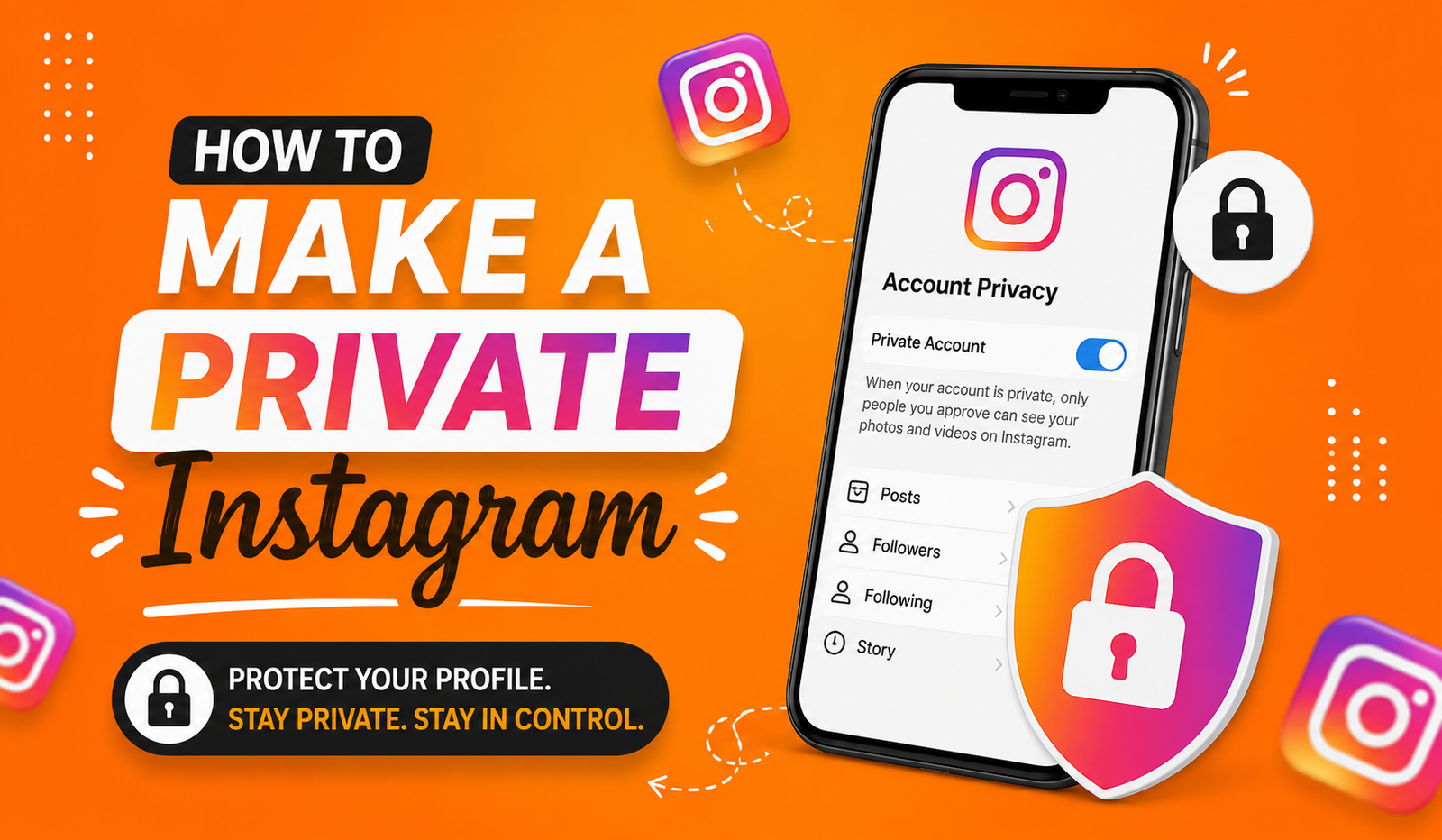
Instagram is fun. But sometimes you just want more control over who sees your posts, stories, and photos. Maybe you’re tired of strangers checking your profile. Maybe you just want a smaller, closer circle of friends and family. Whatever your reason, learning how to make a private instagram account is easier than you think.
In this guide, I’ll walk you through every step. I’ll explain why privacy matters, what changes once you switch, and how to avoid common mistakes. By the end, you’ll know exactly how to make instagram private on any device, in just a few taps.
What Does It Mean to Make Your Instagram Private?
A private Instagram account means only approved followers can see your posts, stories, and reels. Random people can still find your username in search, but they can’t view your content unless you accept their follow request. This is different from a public account, where anyone on the internet can see everything you post.
Think of it like a locked front door. Public accounts leave the door wide open. Private accounts let you choose who walks in. This one small setting change gives you a lot more control over your digital life.
Why Should You Make Your Instagram Account Private?
There are many good reasons people search for how to make private on instagram. Let’s break down the biggest ones.
Protect Your Personal Photos
Once you post something public, it’s out there. People can screenshot it, share it, or save it without asking you. A private account cuts down on this risk a lot, since only your approved followers can view your content in the first place.
Control Who Follows You
With a private account, every new follower has to send a request first.Every new follow request must be approved by you before that person can see your posts and stories.This means no more random accounts, bots, or strangers following you without your permission.
Avoid Unwanted Attention
Public profiles sometimes attract spam comments, weird DMs, or unwanted attention from people you don’t know. Going private helps filter that out, since only people you’ve approved can interact more freely with your profile.
How to Make a Private Instagram (Step-by-Step)
So here’s the big question people type into Google: how to make a private instagram? The good news is that it only takes about 30 seconds to change this setting. Instagram made this setting simple to find, whether you’re on a phone or a computer.
Steps Using the Instagram App (iPhone and Android)
Here’s exactly what to do on your phone:
- Open the Instagram app and go to your profile.
- Tap the three lines (menu icon) in the top right corner.
- Select Settings and Privacy.
- Tap Account Privacy.
- Turn on the Private Account toggle.
- Change your account to Private and confirm by tapping Switch to Private when the pop-up appears.
That’s it! Your account is now private. Anyone who wasn’t already following you will now need to send a request to see your posts.
Steps Using Instagram on a Desktop Browser
If you’d rather use a computer, the process is almost the same:
- Go to instagram.com and log into your account.
- Click your profile picture, then click Settings.
- Select Privacy and Security from the menu on the left.
- Find the Account Privacy section.
- Check the box next to Private Account.
- Confirm the change when the pop-up appears.
Both methods work equally well. Pick whichever device is easiest for you.
How Can I Make My IG Private From the Settings Menu
If you’re still asking, “how can i make my ig private,” it really comes down to one main setting hidden inside your privacy menu. Instagram doesn’t make you dig through ten different screens. It’s all grouped under Account Privacy, so once you find that section, you’re basically done.
A lot of people get confused because Instagram’s layout changes slightly between app updates. If you can’t find Settings right away, try searching “privacy” in the app’s search bar within your settings menu. It should take you straight there.
How to Make Your Instagram Private Without Losing Followers
Here’s some good news. Switching to private does not remove any of your current followers. Everyone who already follows you stays exactly the same. The only difference is for new people. Going forward, anyone new has to send a request and wait for your approval.
So if you’re worried about how can i make instagram private without losing your audience, don’t stress. Your existing followers, likes, and comments all stay untouched. Only future visibility changes.
What Happens After You Make Instagram Private
Once your account switches over, a few things change right away. Your old posts stay up, but they’re now hidden from anyone who isn’t following you. Your profile picture, bio, and follower count are still visible to everyone, but your grid, stories, and reels become locked.
Here’s a simple table comparing what changes:
| Feature | Public Account | Private Account |
| Who sees your posts | Anyone | Approved followers only |
| Follow requests | Not required | Required for new followers |
| Comments on your posts | Anyone can comment | Only followers can comment |
| Profile picture and bio | Visible to all | Still visible to all |
| Hashtag and explore visibility | Posts appear in search | Posts hidden from search |
| Sharing your posts | Anyone can share | Only followers can share |
Public vs. Private Instagram: Key Differences
| Category | Before Going Private | After Going Private |
| New followers | Instant, no approval | Must be approved by you |
| Story visibility | Anyone can view | Followers only |
| Search visibility | Full posts show up | Only profile name shows up |
| Old followers | Stay the same | Stay the same |
| DMs from strangers | Easier to receive | Slightly limited |
How to Make a Private Instagram for Business Accounts
Business and creator accounts work a bit differently. Instagram actually doesn’t allow business profiles to go fully private, since these accounts are built for public reach and marketing. If you have a business account and want privacy, you’ll need to switch back to a personal account first.
To do this, go to Settings and Privacy, tap Account Type and Tools, then select Switch to Personal Account. After that, you can follow the same steps listed above under how to make instagram private for personal profiles.
Common Problems When Trying to Make Instagram Private
Sometimes the toggle doesn’t work right away, or people run into small glitches. Here are the most common issues and quick fixes.
| Problem | Likely Cause | Simple Fix |
| Privacy toggle won’t switch | App needs an update | Update Instagram from app store |
| Account reverts to public | Business account settings | Switch to personal account first |
| Old posts still showing publicly | Cache not refreshed | Log out and log back in |
| Followers can’t see new posts | Approval pending | Manually approve their request |
If none of these fixes work, try restarting your phone or reinstalling the app. Nine times out of ten, that solves the problem completely.
Tips to Keep Your Private Instagram Account Safe
Making your account private is a great first step, but it’s not the only thing you should do. Here are a few extra tips to boost your safety even more.
First, turn on two-factor authentication. This adds an extra layer of protection beyond just your password. Second, review your follower list often. Remove anyone you don’t recognize or don’t want having access anymore. Third, be careful about who you approve. You don’t have to accept every follow request. Only approve people you know and trust.
Lastly, avoid accepting follow requests from accounts with no profile picture or posts. These are often fake or spam accounts trying to gather information.
How to Switch Back to Public Anytime
Changed your mind? No problem. You can switch back to public just as easily. Go back into Settings and Privacy, tap Account Privacy, and turn the toggle off. Your account becomes public again immediately, and anyone can view your content right away.
This flexibility is one of the best parts about Instagram’s privacy settings. You’re never locked into one choice forever.
Frequently Asked Questions
Does making my account private delete my old posts? No. All your posts, reels, and photos stay exactly where they are. They’re just hidden from non-followers.
Can people still find my private account in search? Yes. Your username and profile picture still show up in search results, but your content stays hidden until you approve them.
Will my current followers need to request access again? No. Anyone already following you keeps their access. Only new followers need approval.
Can I make a business account private? Not directly. You’ll need to switch to a personal account first, then follow the private account steps.
How long does it take for the change to apply? It’s instant. As soon as you tap confirm, your account is private.
Final Thoughts
Learning how to make a private instagram account really is one of the simplest ways to protect your personal space online. Whether you’re doing it for safety, peace of mind, or just to keep your circle smaller, the whole process takes less than a minute.
Once you flip that privacy switch, you control who sees your world. And if you ever change your mind, switching back is just as easy. So go ahead, open your settings, and take back control of your Instagram today.